Remove Image Backgrounds Fast and Clean.
Upload a JPG, PNG, or WebP photo and get a transparent PNG back in seconds. No sign-up, no watermark, and 5 free runs on this device for now.
Your image is processed server-side and returned as a transparent PNG ready for download.
Portraits, product shots, pets, and objects with clean contrast tend to produce the best edges.
Upload and preview
Drop in your image, send it to the remover, and compare the before/after result in one step.
Drop your image here or browse to upload
Ideal for product photos, portraits, stickers, thumbnails, and design cutouts. Processing happens on secure servers and returns a clean PNG cutout.
Or paste an image URL:
Supported formats: JPG, PNG, WebP. Output downloads as a transparent PNG.


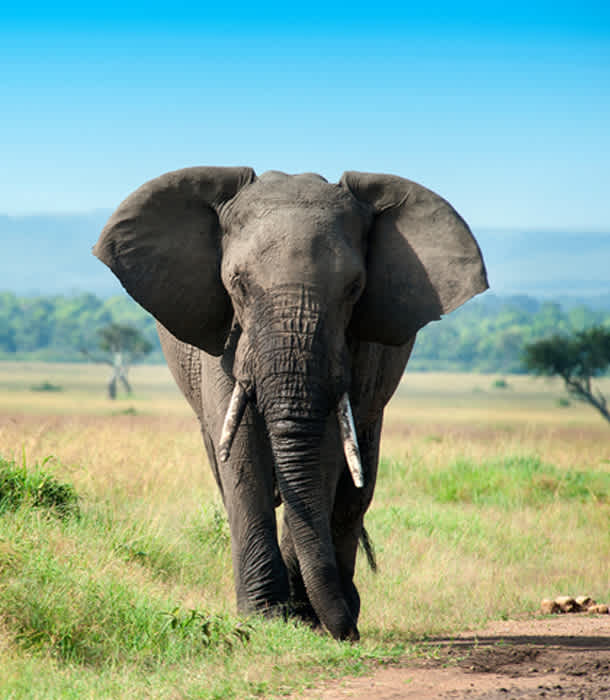
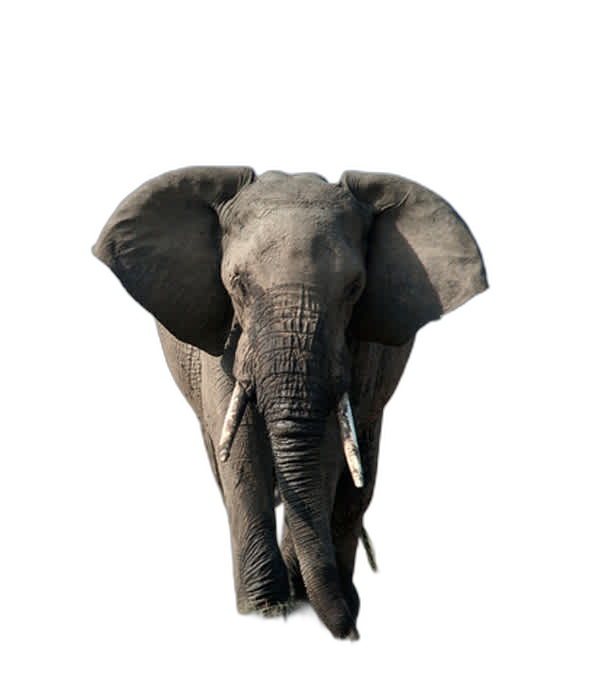
Before & after - real AI results
Each card shows the original photo on the left and the transparent PNG output on the right. Hover to see the detail up close.




How it works
A tighter flow than a typical tools page: upload the image, let the AI isolate the subject, then download the transparent PNG.
Upload a clean image
Drag in a JPG, PNG, or WebP file. Portraits, products, pets, and objects usually work best when the subject is clearly separated from the background.
Let the model remove the background
Your image is securely uploaded, processed server-side, and returned as a transparent PNG.
Download transparent PNG
Review the before/after comparison and save the result as a PNG with transparency for shops, social posts, presentations, and design work.
Made for real use cases
The page stays focused on the remover itself, but the output should be immediately usable across common workflows.
Clean cutouts for Shopify, Etsy, Amazon, or catalog listings.
Create neutral-background profile images for CVs, speaker pages, and team profiles.
Drop cutout photos into thumbnails, reels covers, and branded post layouts.
Place transparent images into slides, posters, or classroom materials without manual editing.
Removing an image background used to require expensive software like Photoshop and hours of careful manual selection work. Today, AI-powered background removal can do the same job in seconds. This tool uploads your image for secure server-side processing and returns a transparent PNG without extra editor steps.
How to Remove an Image Background Online
The process is designed to be as simple as possible. You upload an image, and the AI does everything else automatically:
Upload your image
Click the upload area or drag and drop an image file directly onto it. The tool accepts JPEG, PNG, and WebP formats. Uploads are currently limited to 20MB per image. For now, the tool allows 5 free completed runs per device.
Wait for AI processing
After upload, your image is sent to our secure processing endpoint. Processing time depends on image size, queue time, and scene complexity, but most images finish within a few seconds.
Review the transparent PNG
The result is shown side by side with your original image. The background removed version displays on a checkerboard pattern - the standard visual representation of transparency. You can immediately see how well the AI separated the subject from the background. If the result looks good, proceed to download.
Download the PNG file
Click the Download PNG button to save the transparent image to your device. The file is saved as a PNG with an alpha channel (transparency) and no watermark. It is ready to use immediately in design tools, e-commerce platforms, presentations, or social media.
How AI Background Removal Works
Traditional background removal used rule-based algorithms - tools like the magic wand or colour-range selection that worked by detecting pixels of a specific colour and expanding outward. These methods required clean, uniform backgrounds and produced poor results on complex edges like hair, fur, or semi-transparent objects.
Modern AI background removal uses deep learning neural networks trained on millions of labelled images. The AI learns to understand the semantic content of an image - recognising what is a "person", "product", "animal", or "object" and what is "background" - rather than simply comparing pixel colours. This understanding generalises across edge cases that would completely defeat rule-based methods.
This tool uses a server-side AI workflow to separate the foreground subject from the background and generally produce cleaner cutouts than lightweight in-browser approaches, especially on product shots and portraits.
From the browser, you upload the source image once. The server validates the file, runs the removal process, retrieves the generated PNG, and streams the finished result back to you.
Background Remover Use Cases
E-Commerce Product Photography
Online marketplaces like Amazon, eBay, Etsy, and Shopify require or strongly recommend product images on a white or transparent background. Photographing every product in a professional studio with a white background is expensive - most sellers photograph products on a table or floor and then remove the background in post-processing. AI background removal makes this workflow fast and accessible. A transparent PNG can then be converted to JPG or placed on any background colour required by the platform.
White-background product images consistently outperform cluttered backgrounds in A/B tests: they reduce visual distraction, make products appear more professional, and result in higher click-through rates and conversion rates in marketplace search results. After removing the background, use our image compressor to reduce file size for faster page loads.
Social Media and Content Creation
Content creators, influencers, and marketers need to remove backgrounds for countless tasks: creating thumbnail graphics, placing photos into branded templates, producing story backgrounds, making sticker-style images, and compositing content for reels and short videos. Removing the background from a selfie and placing it on a colourful gradient, a product photo, or a branded background can be done in seconds without any paid design software.
YouTube and podcast thumbnail design frequently uses cut-out photos of the host or subjects placed over custom backgrounds. Before creating thumbnail content, you may want to download TikTok videos or download Instagram Reels to study top-performing formats. Blog post featured images, Twitter card artwork, and LinkedIn post graphics all benefit from clean subject cutouts. After removing the background, try our WebP converter for smaller file sizes on the web.
Graphic Design and Presentations
Designers working in Figma, Canva, Adobe XD, and similar tools frequently need isolated subjects - a person, a product, a logo - to place over different backgrounds or in composite scenes. Transparent PNG exports from this tool drop directly into any design application with no additional work needed. PowerPoint and Google Slides users can place transparent images over slide backgrounds, creating professional-looking presentations without needing design expertise.
ID Photos and Professional Headshots
Many countries require ID photos on white backgrounds for passports, visas, and government documents. Job applications increasingly require headshot photos with clean backgrounds. Instead of visiting a photo studio, individuals can take a photo in good lighting and use AI background removal to produce a clean, professional-looking result with a neutral background. You can then resize the image to meet specific dimension requirements for the document.
App and Game Development
Developers building mobile apps, games, or web interfaces often need sprite images, icons, and assets with transparent backgrounds for compositing in their UI. Removing the background from a photograph to create a sprite or layered asset is a common development task that this tool handles instantly. The rembg AI model powering this tool is built on Replicate's inference platform - developers can also integrate it directly via the Replicate API.
Print and Physical Products
Custom merchandise businesses (t-shirts, mugs, phone cases, stickers) require artwork with transparent backgrounds so the print can be placed on any coloured product surface. Photo book services need cut-out portraits for page layouts. Transparent PNG exports integrate with all major print-on-demand platforms including Printful, Printify, and Gelato. After removing the background, you can convert to PNG or resize for exact print dimensions.
Tips for Getting the Best Background Removal Results
Good lighting makes the biggest difference. Images taken in even, diffuse lighting (natural window light or studio softboxes) give the AI clean, consistent colour information to work with. Harsh shadows that fall across both the subject and background confuse segmentation - the AI may include shadows in the foreground or exclude parts of the subject that share shadow colour with the background.
Contrast between subject and background helps. A dark jacket against a light background is easy. A dark subject against a dark background is harder. If your original image has low contrast, consider whether the subject can be relit or a different photo taken before attempting background removal.
Sharp focus on the subject improves edge accuracy. Blurry edges that blend into the background are genuinely ambiguous - even a human editor would struggle to make precise selections. Sharp focus on the subject means the AI has clear pixel-level information to work with at the edges.
Simple backgrounds are easier. Plain walls, solid-colour surfaces, and studio backdrops produce the best results. Busy backgrounds (cluttered room, street scene) are harder but the AI still handles them well for distinct subjects like people and products.
Use the highest resolution image available. More pixels means more edge detail for the AI to work with. Uploading a 12MP photo produces cleaner edges than uploading a downscaled thumbnail of the same subject.
Hair and fur work better than you might expect. The neural network has been trained on many images with complex hair and fur, and it handles flyaway strands and fine fur significantly better than traditional selection tools. For very fine or curly hair against a busy background, results vary - but for most portraits with a reasonably distinct background, the AI produces impressive hair detail.
Privacy and Security
This tool does upload your image for processing. Files are posted to our secure processing endpoint, validated for type and size, and the output is streamed back to your browser for download.
That means this tool is not the right choice for highly sensitive images you do not want processed by a third-party AI service. Use it for standard product, social, presentation, and design workflows where server-side processing is acceptable and better cutout quality is the priority.
Uploads are limited to JPG, PNG, and WebP files up to 20MB, and invalid files are rejected before processing begins. The current free allowance is 5 completed runs per device.
Browser Compatibility
The tool works best in a modern browser that supports file uploads, fetch, and blob downloads. This includes:
- Chrome 90+ (desktop and Android)
- Firefox 90+ (desktop)
- Safari 15+ (macOS and iOS)
- Edge 90+ (Windows)
If you are using an older browser or encounter issues, updating your browser to the latest version resolves them in most cases. Internet Explorer is not supported.
Output Format: Transparent PNG
The output of this tool is always a PNG file with a transparent background (alpha channel transparency). PNG was chosen because it is the only widely supported image format that preserves full transparency with lossless quality. JPEG does not support transparency. WebP supports transparency but has less consistent support in older applications.
A transparent PNG can be:
- Placed over any background colour in a design tool - the transparent areas show whatever is behind them
- Composited onto photographs or patterns for social media or marketing
- Uploaded to e-commerce platforms that render transparent images on their own backgrounds
- Used as app icons, game sprites, or UI assets that layer correctly over dynamic backgrounds
- Converted to WebP when you need a smaller file size while preserving transparency (use the WebP Converter on this site)